MetaMask isn't working with the Brave browser. How do I fix this?
Last updated: February 20, 2026
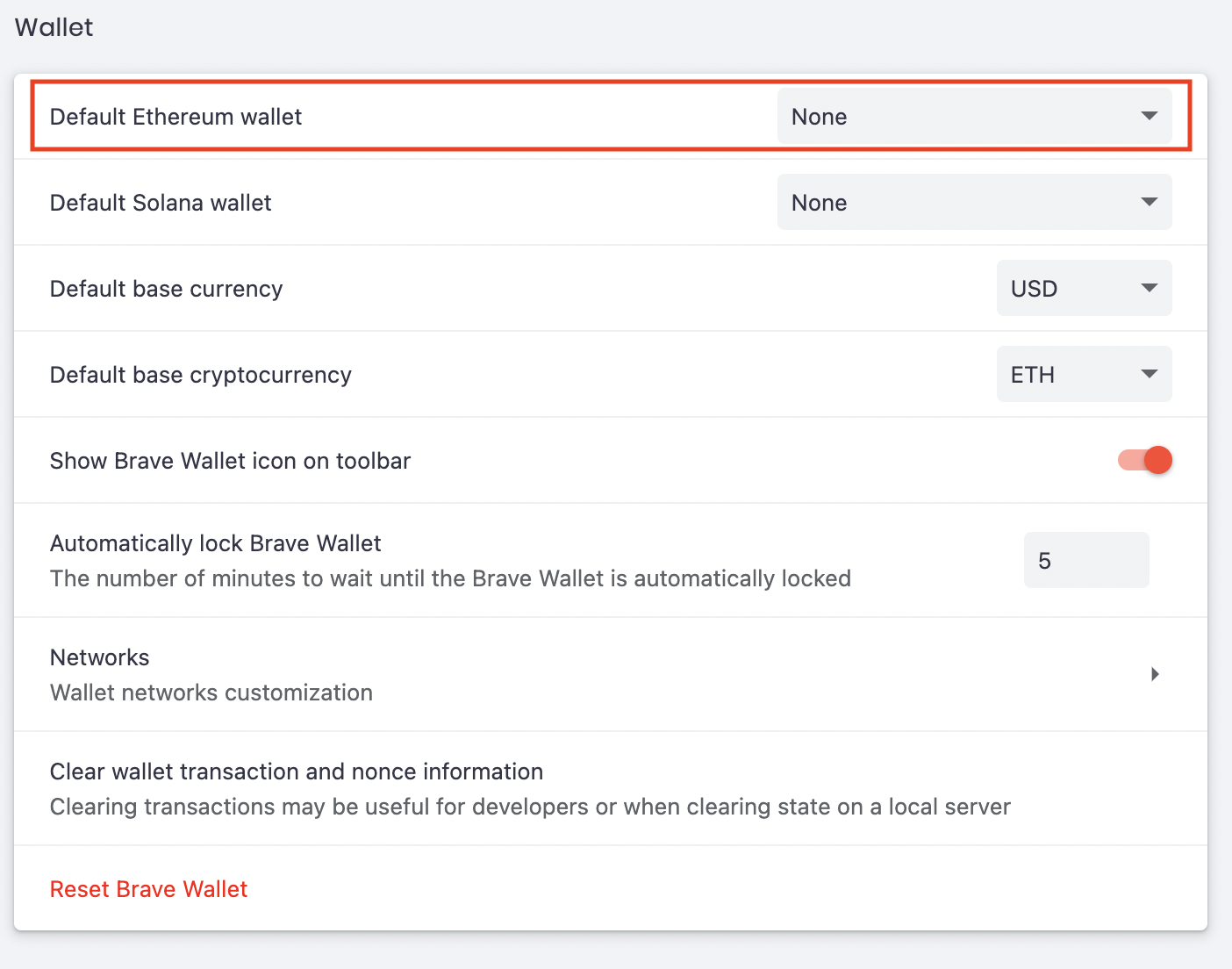
Brave sets the default Ethereum wallet to its built-in one. Here's how to enable MetaMask as your default wallet so you can connect to Matcha:
Click on the hamburger Menu icon (three horizontal lines) in the upper right hand corner.
Click on
Settings
Scroll down and click on
Walletand configure these settings:
•Default Ethereum wallet= None